Quiet while you dictate.
MicYield mutes audio on your Mac’s default outputs when your microphone becomes active. Music and videos keep playing silently.
Automatically mute your Mac while you dictate. Music and videos keep playing silently. When your mic is idle, MicYield restores the sound changes it made.
Open source · Runs locally · No account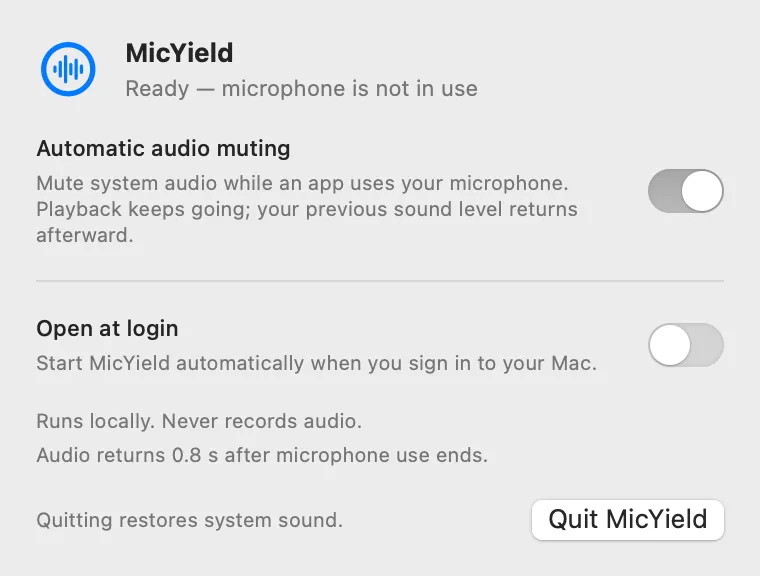
Start dictating without reaching for the volume keys. MicYield quiets your default audio outputs from the menu bar.
MicYield mutes audio on your Mac’s default outputs when your microphone becomes active. Music and videos keep playing silently.
MicYield restores only the sound changes it made. Your manual mute and volume changes take priority.
Read the code or build it yourself. MicYield runs on your Mac without recording audio, sending telemetry, or contacting a server.
Set your preferences once. Microphone activity handles the rest.
Launch the app and find its icon in your menu bar.
Enable Automatic audio muting. Optionally enable Open at login to have MicYield ready every day.
Start dictation in Codex or another app. After the mic has been idle for 0.8 seconds, MicYield restores its own sound changes unless you have taken over.
MicYield detects an active microphone, not speech. A call or an app that keeps its mic open also triggers muting. Turn off Automatic audio muting during calls to hear other people.
What gets muted, what keeps playing, and how your sound comes back.
Music and videos keep playing silently. MicYield mutes your Mac’s default audio outputs while the microphone is active; it does not control playback.
Your manual sound changes take priority. MicYield restores only the mute or volume changes it made, so it will not overwrite your changes after dictation.
No. MicYield checks whether a microphone input is active without recording audio. The app makes no network requests and needs no account or browser extension.
An open microphone in a call triggers the same behavior as dictation. Automatic audio muting can silence the people you are speaking with. Turn it off in the menu to hear the call. An app that keeps its input open can keep muting active.
MicYield requires macOS 14.2 or later. Choose the Apple Silicon download for M1 or newer Macs, or Intel for an Intel Mac. You can find your chip in Apple menu → About This Mac.
Some outputs, including certain HDMI devices, have no software mute or volume control. Custom per-app routing to other devices is not changed.
Turn off Automatic audio muting or quit MicYield to restore its changes, then check the Mac sound output. Recovery after a forced termination may wait until the next launch. Very short microphone sessions may be missed.
Download MicYield, move it to Applications, and start dictating. No account, browser extension, or subscription required.